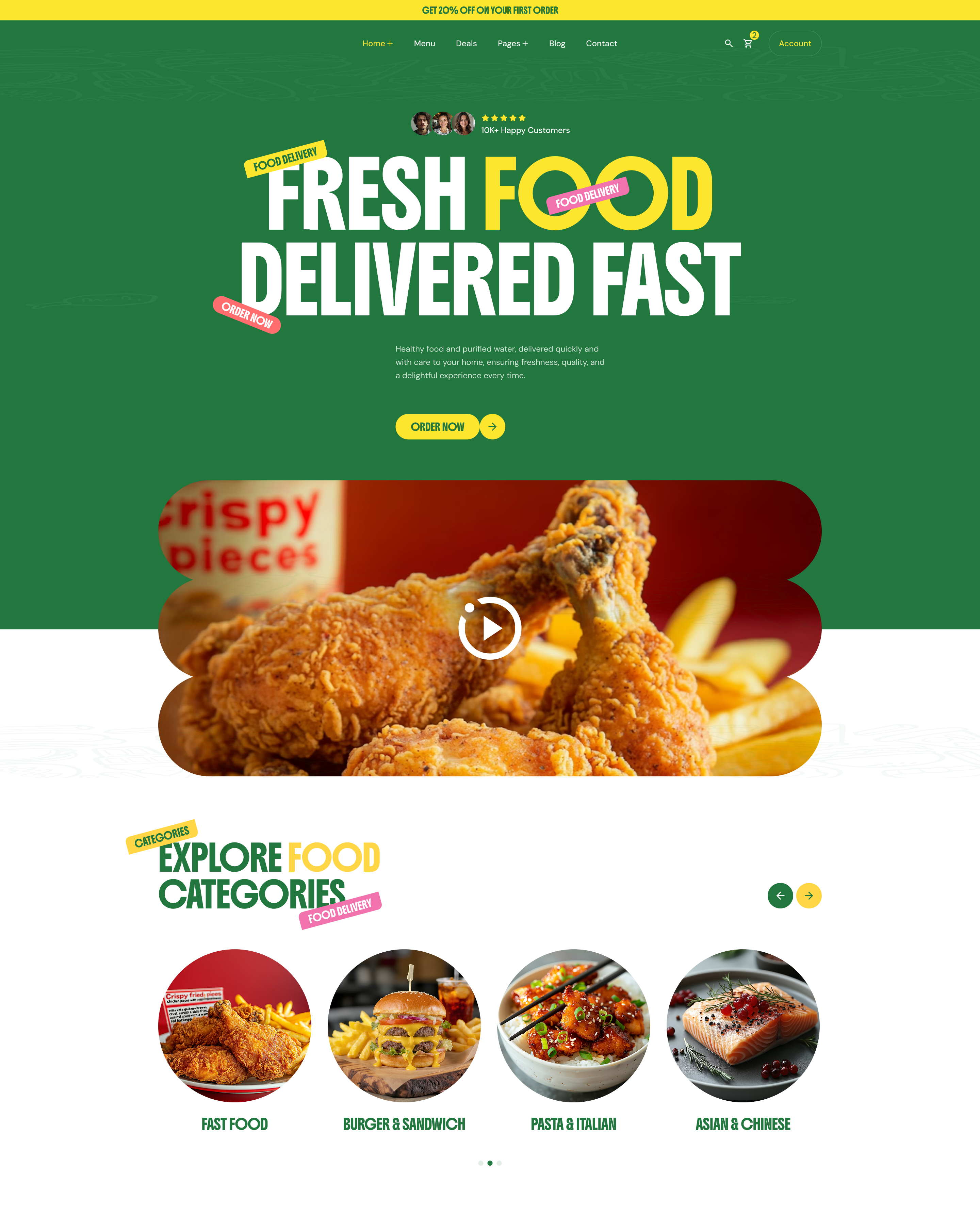
Dinevo - Modern Restaurant & Cafe Next.js Template
For any support please don't hesitate to contact us at
Support Center. We provide 13 hours real-time support for our
customers.
We would like to thank you for choosing Dinevo - Modern
Restaurant & Cafe Next.js Template
Getting started
Dinevo - Modern Restaurant & Cafe Next.js Template
Template
Download project, open in a text editor
(vscode) open terminal change directory
to the project directory and write the command
npm install
and then press enter after installation compleat then
npm run dev to start project.
Template Features
Latest : NextJS 16 with React 19
HTML5 & CSS3 & SASS
Bootstrap v5.x
React Bootstrap
Font-awesome
Google Icons
Custom Icon
React Swiper Slider
Popular npm package
05 Awesome Home page
75+ Awesome Inner page
Responsive Design
Pixel Perfect Design
Clean Code & Unique Design
Easy to Customize
Component Based Design
SEO Optimize
Lenis Smooth Scroll
GSAP Animation
What's Included
After purchasing Dinevo - Modern Restaurant & Cafe
Next.js Template on themeforest.net with your Envato
account, go to your Download page. You can choose to
download Dinevo template package which contains the
following files:
The contents of the template package downloaded from
ThemeForest
main file - Containing Full
Template.
documentation - This folder
contains what you are reading now :)
Template Structures
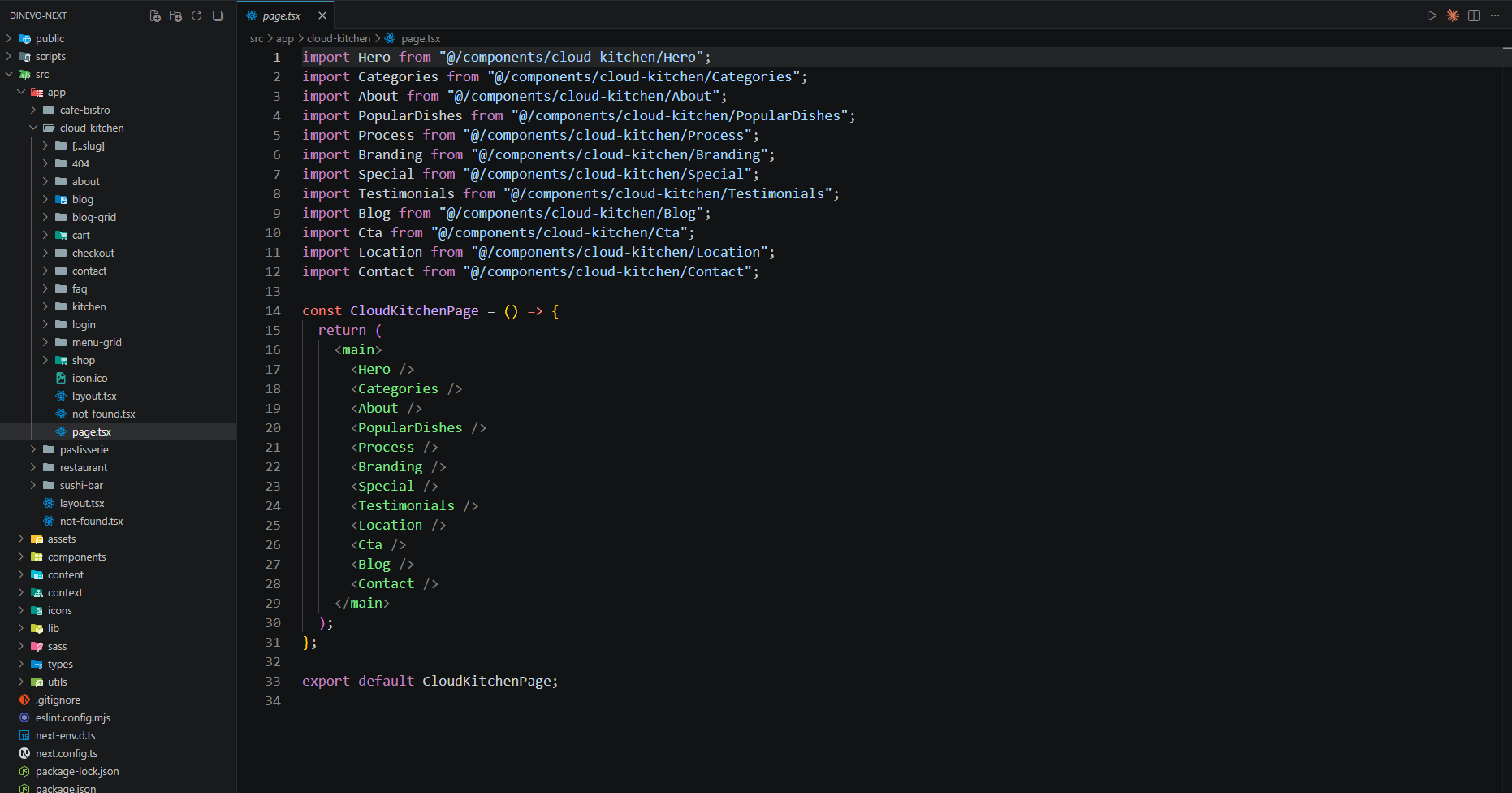
SRC Folder - This is the
parent folder of the project.
APP Folder - Inside src
folder It contains all the pages.
SASS & Styles Folder -
Inside App folder sass & styles contains all the
styles for the project.
Component Folder -
Inside src folder It contains all the components that
required for the project.
package.json file - All
dependencies and scripts & projcet records are there.
public folder - Contains
all static assets like image, audio, video, fonts etc.
favicon.ico File - It is
in the root files.
Project Structure
This template is a fixed layout with four columns. The
main contents are inside the 'body' tag divided into
different section (i.e. header, banner, services,...
footer etc.). The general template structure is the same
throughout the template. Here is the general structure.
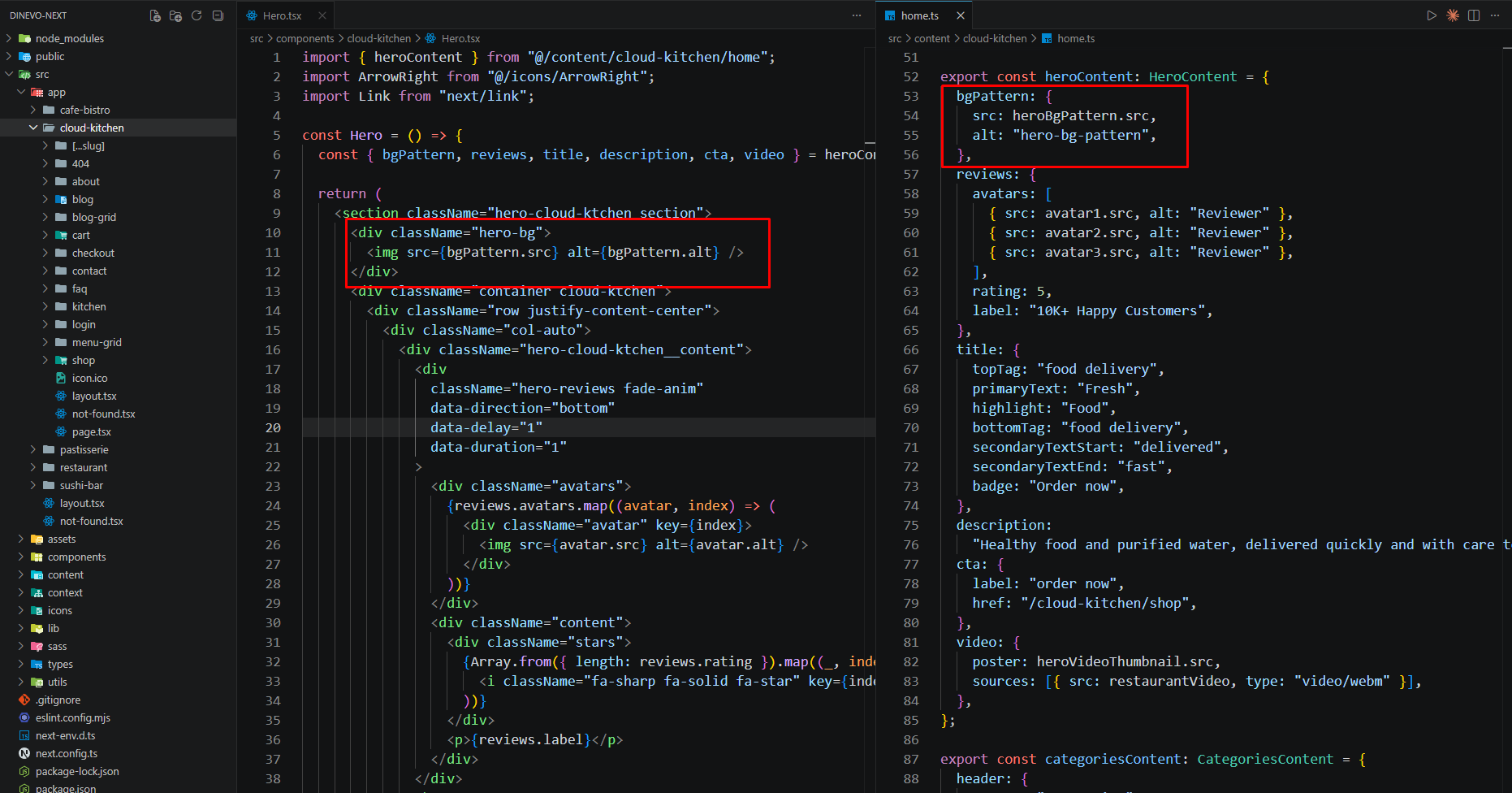
Carefully collect the source name of the image (i.e.
hero.jpg)
Open the file called images from public -> assets
folder.
Find the particular image file.
Replace the file with your image.
Make sure that the file name does not change.The
file name should be the same.
Example:
Suppose you want to change the following image file:
Note
Images seen in the live preview are only set for
preview purposes. They are not included in the
download files.
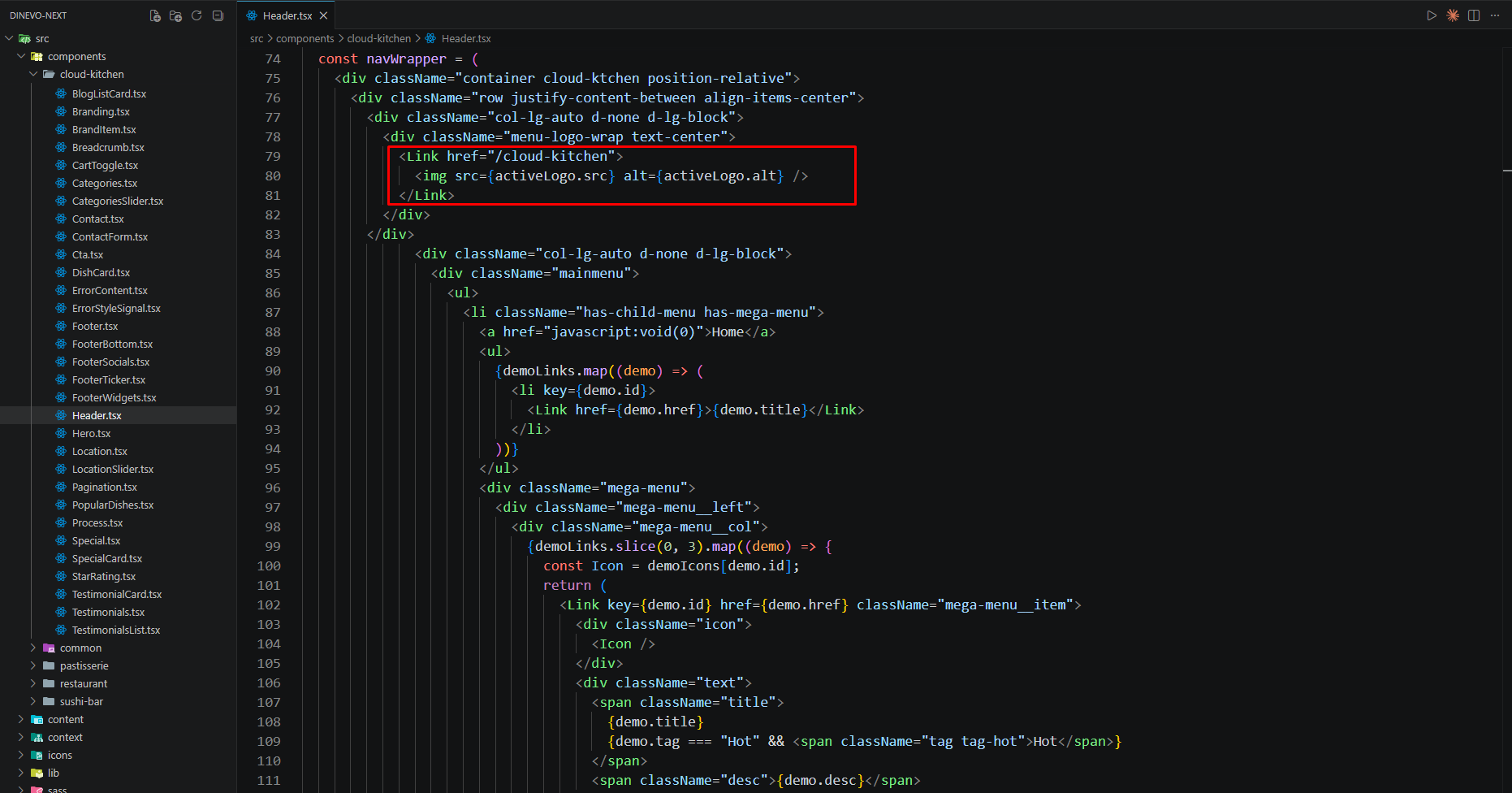
Changing Brand Logo
To change any images of the website
Carefully collect the source name of the image (i.e.
banner-img.jpg)
Open the file called images from public -> assets
folder.
Find the particular image file.
Replace the file with your image.
Make sure that the file name does not change.The
file name should be the same.
Example:
Suppose you want to change the following image file for
change your logo:
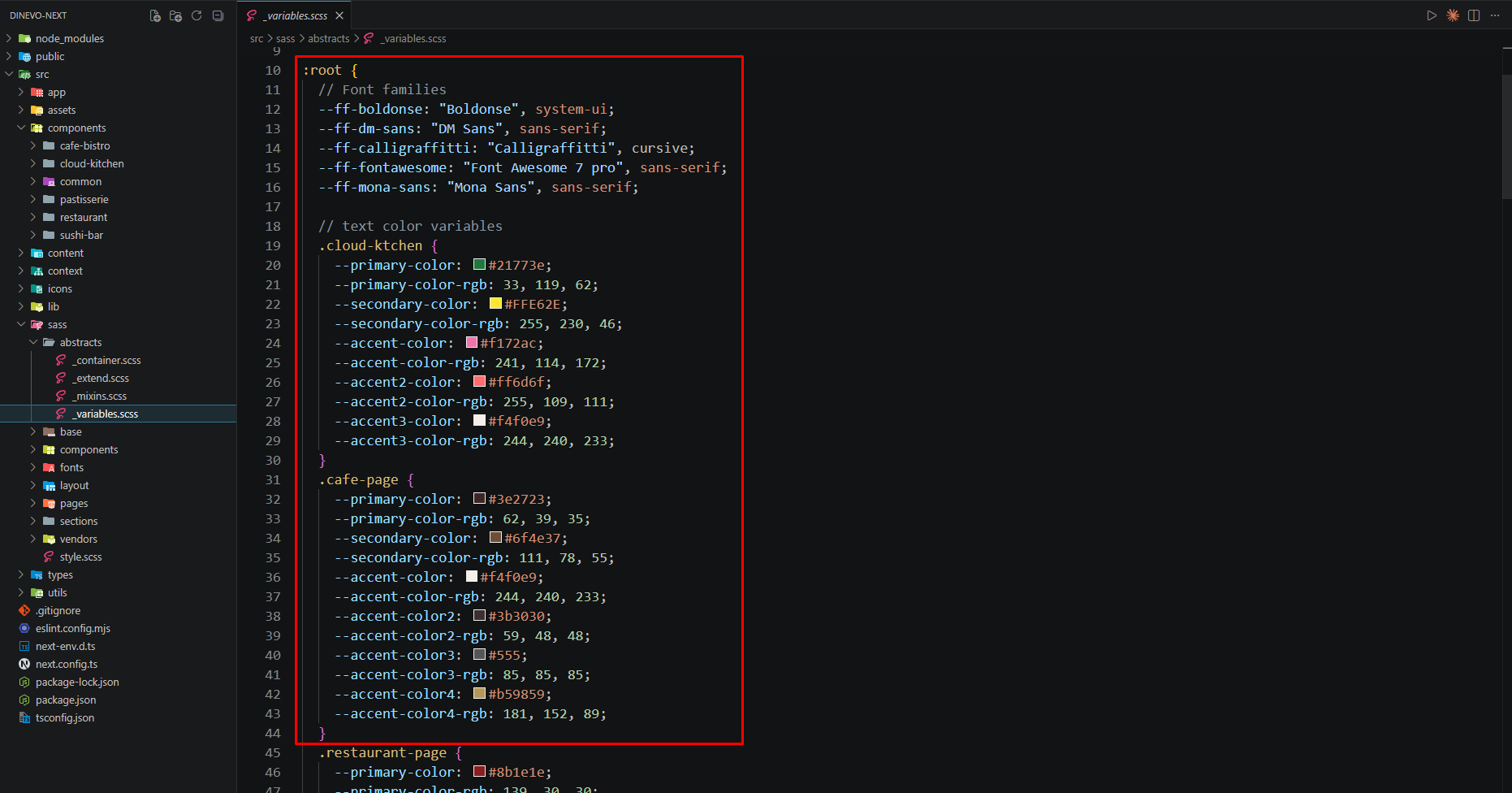
Changing Colors
We have used
scss
for this project to write css. If you are familiar with
scss
you should customize only the
style.scss
files. Please make sure you compile the
style.scss
file after you have made changes in any of the
style.scss file.